This guide helps you go from download to your first useful conversation with your documents in IntelliMate.
1. Download and install IntelliMate
IntelliMate is a desktop app for Windows and macOS. Start from the Download section on the IntelliMate home page and choose the version for your computer.
- Windows: Download and install IntelliMate from Microsoft Store.
- macOS: You can install IntelliMate from the App Store, or use a direct download for Intel chip or Apple silicon.
After installation, open IntelliMate from your desktop, Start menu, Launchpad, or Applications folder.
2. Create your account and verify your e-mail
The first time you open IntelliMate, you will see the Sign Up screen. Fill in the required information, then click Sign Up.
IntelliMate will then show Verify your e-mail. Enter the 6-digit verification code that was just sent to your e-mail address.
Once your e-mail is verified successfully, IntelliMate will open the main app screen and you are ready to add files.
3. Add files to your Knowledge Base
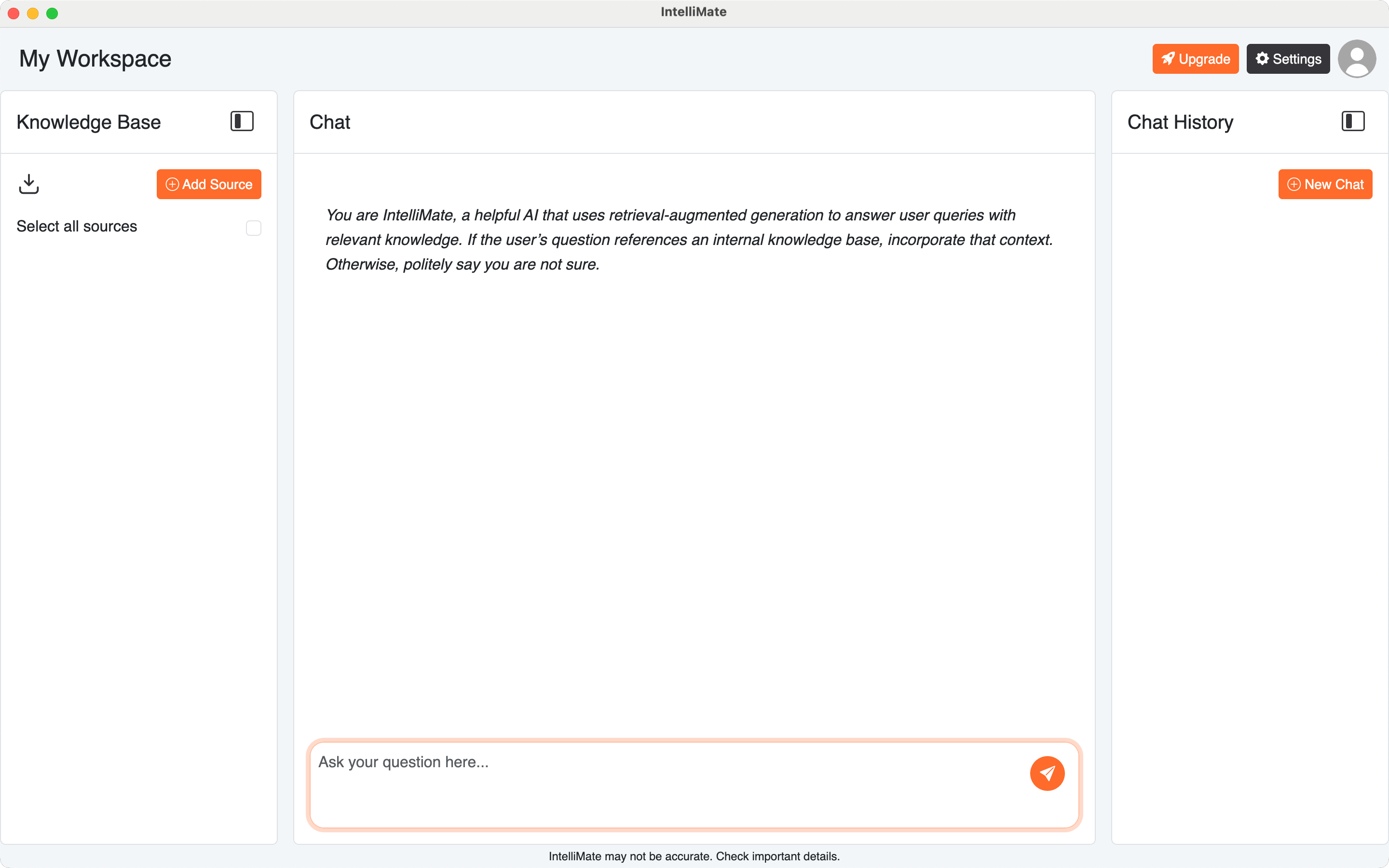
In the left panel, Knowledge Base shows the files you add to IntelliMate. Click Add Source or drag and drop files into the Knowledge Base area.
IntelliMate will then process and prepare your files for search and chat.
When processing finishes successfully, you will see a document-type icon to the left of the file name. For example, a PDF may show an icon like , which helps you identify the file type quickly.
If processing fails, IntelliMate shows an error-style icon like so you know that the file is not ready yet.
Supported file types include PDF, DOCX, XLSX, CSV, MD, HTML, TXT, JSON, YAML, TOML, TF, ENV, XML, LOG, and source code files such as JS, TS, TSX, JSX, CSS, SCSS, PY, JAVA, GO, RS, and SH.
You can click a document name to open and view it. When you are done, click Close (X) to return to the main workspace.
4. Start your first chat
In the right panel, Chat History shows your conversations. Click New Chat to begin a conversation.
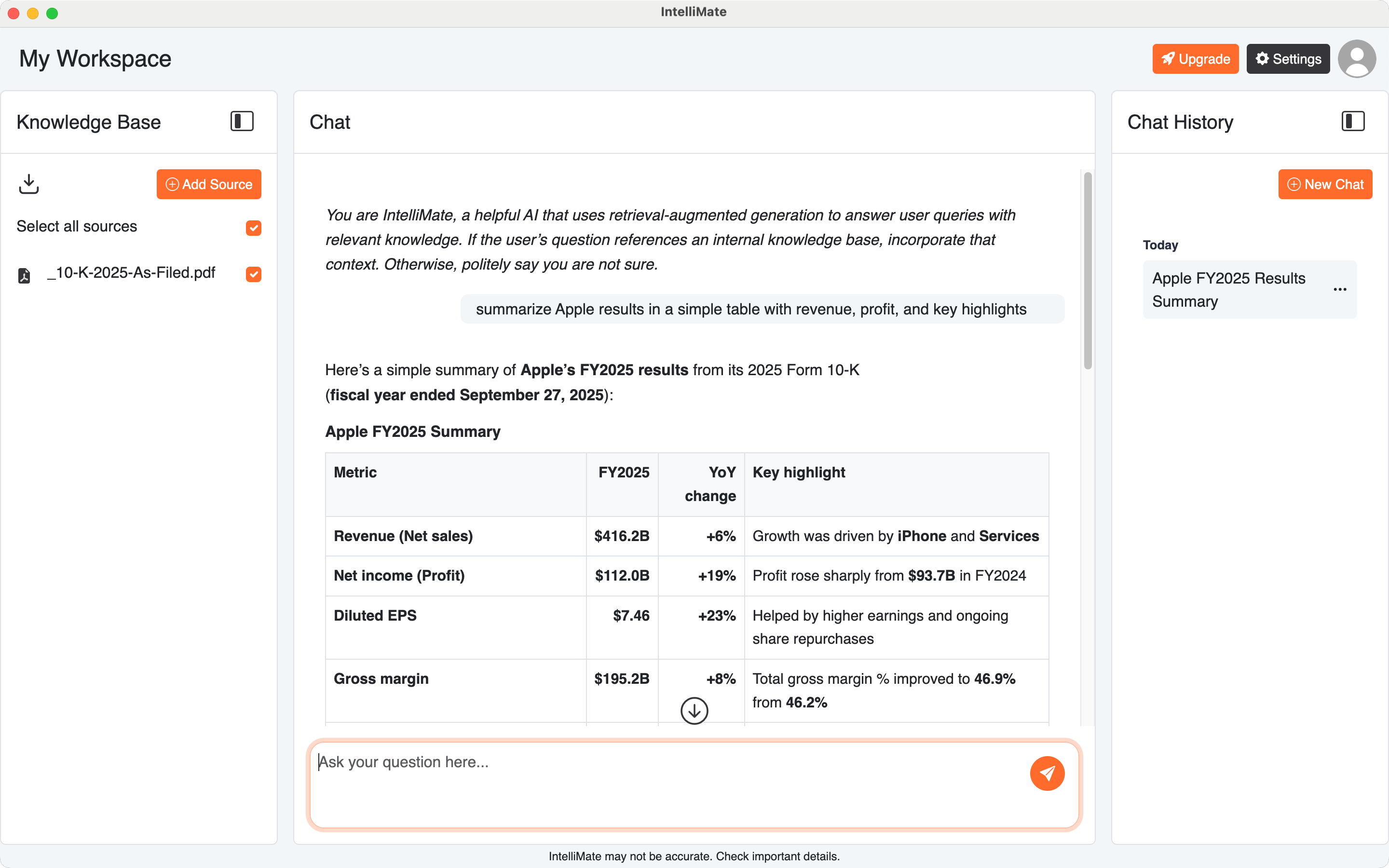
You can start chatting right away in the chat box labeled Ask your question here..., or select one or more files from Knowledge Base if you want IntelliMate to use them as source context for the current chat.
- Press Enter to send your message.
- Press Shift + Enter to add a new line without sending.
A few good first questions to try:
- What are the main points in this document?
- Summarize this file.
- What are the key risks mentioned in this report?
- Compare the differences between these two documents.
- Draft a short follow-up e-mail based on these notes.
If source references appear below the AI response, such as [1] [2] [3], you can click them to open the related excerpts.
5. Review the response and share feedback
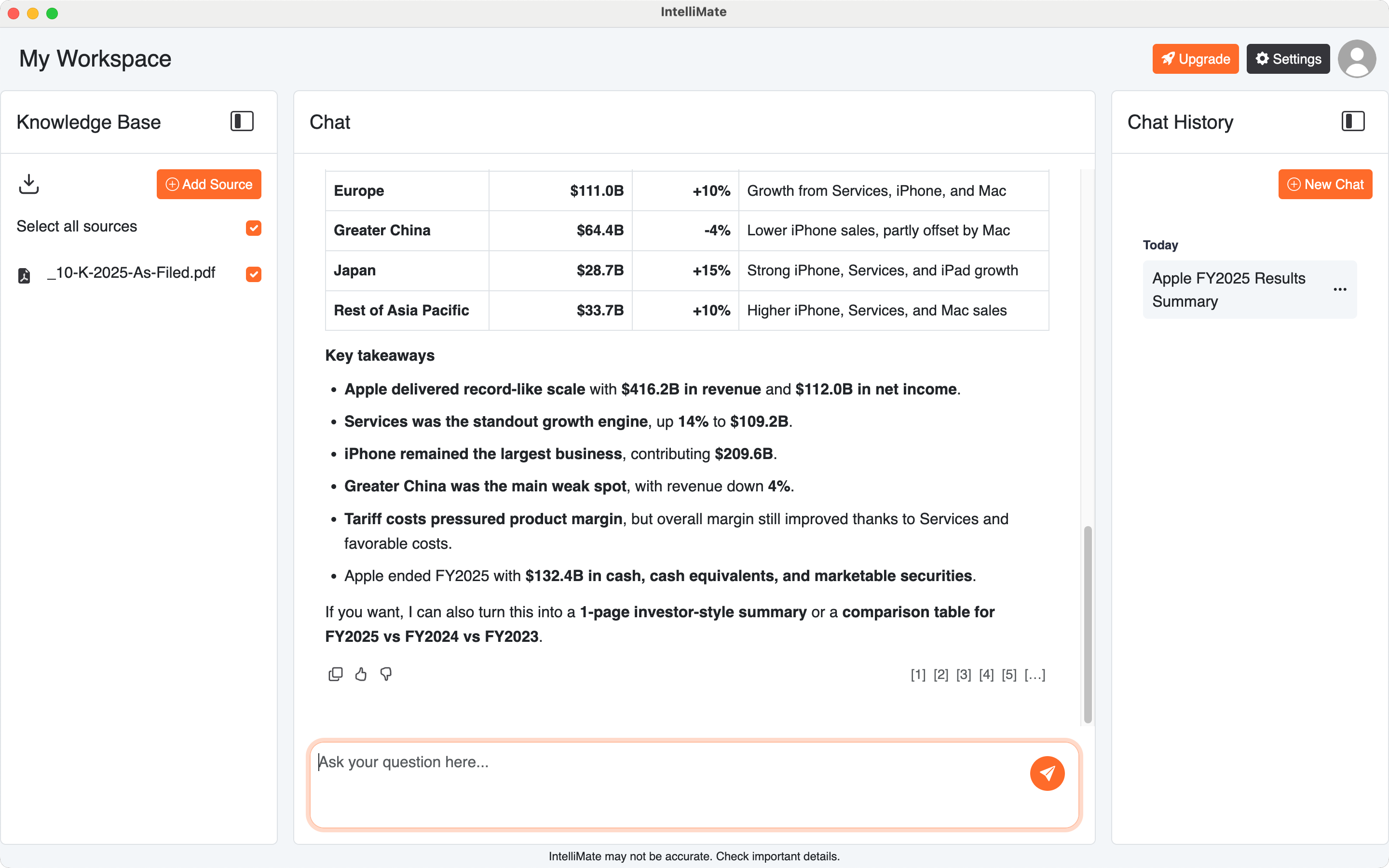
After IntelliMate replies, you can continue the conversation or use the actions below the response.
- Copy text: Copy the response for use elsewhere.
- Good response: Mark a helpful answer.
- Report or share feedback: Report inappropriate, incorrect, or problematic AI-generated content.
When you click Good response, that feedback is stored only on your device for algorithm optimization and is not sent to our servers.
When you click Report or share feedback, the related prompt and AI response are included with the report so IntelliMate can review the issue.
6. Adjust the workspace layout
You can collapse or expand the side panels to create more room in the main chat area.
- Collapse or expand Knowledge Base from the left panel.
- Collapse or expand Chat History from the right panel.
Keyboard shortcuts:
-
Mac:
Command + Bfor Knowledge Base,Command + \for Chat History -
Windows:
Ctrl + Bfor Knowledge Base,Ctrl + \for Chat History
Once you are comfortable with the basics, the next useful guide is How advanced reasoning works.